Activating Your Account
After submitting your application, watch for your LLCC welcome email to activate your account. (Note: Welcome emails are sent on days the college is open. For applications submitted after 1 p.m., this email would arrive the next business day.) Then follow the steps below to successfully activate your LLCC account. Activation of your account is required before you can access any electronic resources at LLCC (i.e. email, Canvas, LoggerCentral, etc.)
Step 1: Collect the information needed for initial login
Your email address
- Students use: username@llcc.edu (provided on your LLCC Admissions welcome information and/or class schedule)
- Employees, use: FirstName.LastName@llcc.edu
Your initial password
Your initial password should follow the formula described in the template below:
- First initial of first name in uppercase (example: "J" for Joe)
-
First initial of last name in lowercase (example: "u" for User)
-
Last 4 digits of Social Security number or 0000 for international students
- Birth month in two-digit format (example: "09" for September)
-
Birth date in two-digit format (example: "03" for third day of the month)
-
EXAMPLE: Joe User with SSN XXX-XX-1111 born on September 03 = Ju11110903
Step 2: Log in for the first time - Set password and multifactor authentication (MFA)
-
Go to: https://outlook.com/owa/llcconline.onmicrosoft.com
-
When prompted, enter your email address and initial password
(for more information, see the section “Step 1: Collect the information needed for initial login” above)
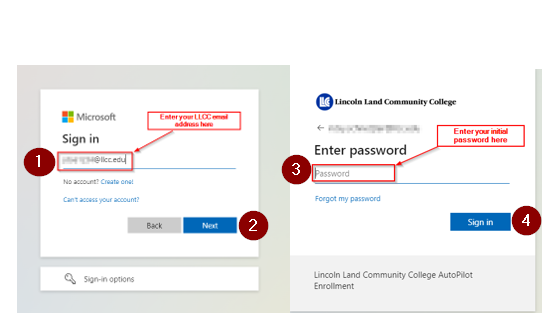
After clicking through, you’ll be prompted to:
-
Set a new password
- At least 10 characters long, including: uppercase letters, lowercase letters, numbers, and/or special characters (!, @, #, $, %, ^, &, *)
- Cannot contain your name, email, student ID or birthdate.
-
Set up multifactor authentication (MFA)
- This helps to get you verified and back into your account if you forget your password, and makes it so other people can’t.
-
Set up two methods to help with this : One of them should be Microsoft Authenticator (Make sure to follow the instructions to download and pair the app to your account)
- Once that's all set, you will use these credentials to log into everything you need as a student: LoggerCentral, The Learning Center, email, Canvas... So make sure to keep it safe.
Important Reminder: LLCC will never ask you to verify your password or MFA codes over text message or email. If you believe you received suspicious communications, please let the IT Helpdesk know immediately.
Still need help?
Contact our helpdesk at helpdesk@llcc.edu or 217-786-2555